Android Makes It Easier to Move Passwords and Passkeys Between Apps
Switching password managers on Android has traditionally meant exporting a file, finding it in your Downloads folder, importing it into another app, and remembering to delete the copy afterward. That process becomes riskier when sensitive credentials remain in an unencrypted file.
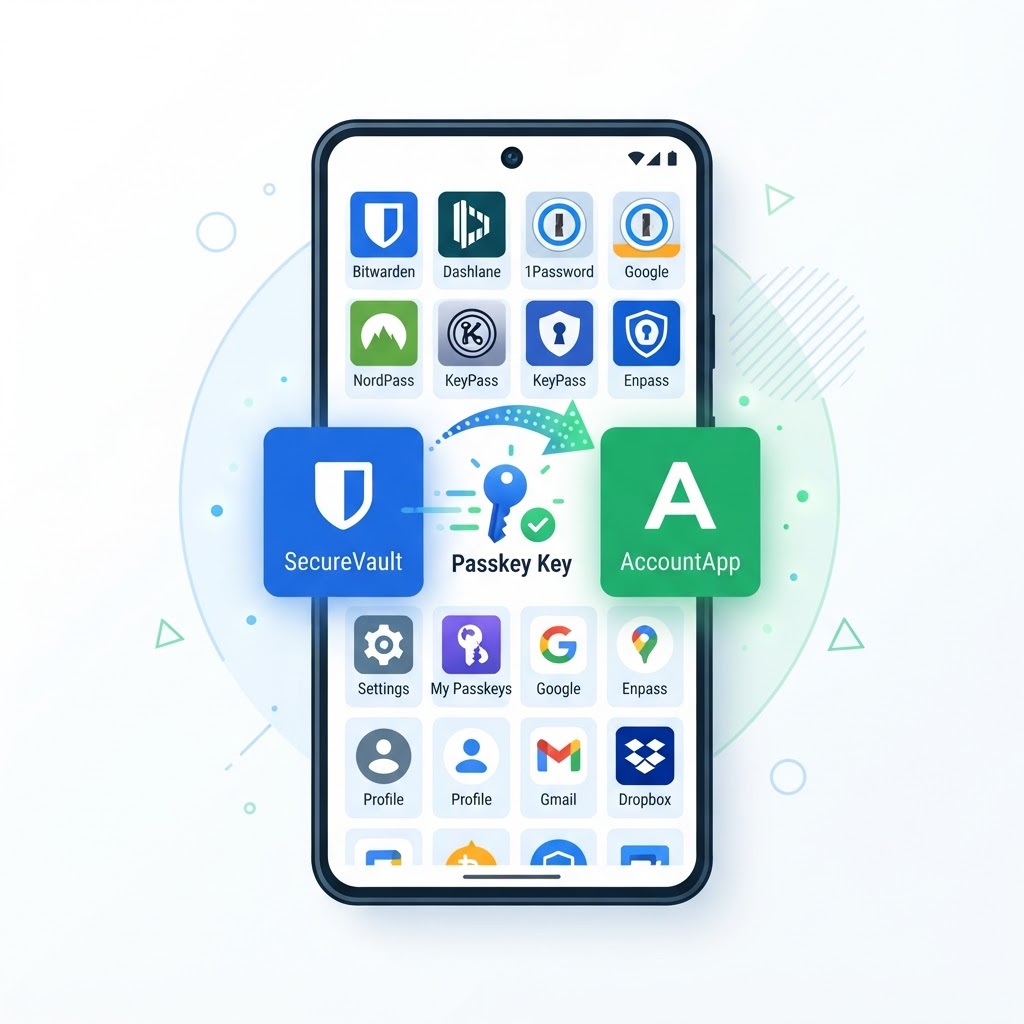
Android now supports a more controlled transfer flow for compatible password managers. The feature can move supported passwords and passkeys directly between apps on the same phone, without requiring users to create a standalone export file.
What changed on Android
From September 10, 2026, Android began enabling a credential-transfer flow that lets one password manager request supported credentials from another. The initial compatibility list includes Google Password Manager, 1Password, Bitwarden Password Manager, and Dashlane, with more providers expected to participate.
The important difference is that Android brokers the handoff between the two apps. Users do not need to generate a CSV or JSON backup just to move their vault, which reduces the amount of time sensitive data spends sitting in ordinary phone storage.
How the transfer works
The process is designed to be started from the password manager you are switching to:
- Open the new password manager and choose its import option.
- Allow Android to identify compatible password managers installed on the phone.
- Select the old manager and continue into that app.
- Authenticate with your fingerprint, face, or device PIN.
- Review and approve the credentials that should be transferred.
The transfer happens between apps on the same Android phone. The operating system coordinates the exchange, while the old manager must authenticate you before releasing data.
Why passkey support matters
Passwords can often be exported as text, but passkeys are deliberately designed not to behave like ordinary passwords. A passkey uses a private key kept on the device and a public key registered with the service, making it resistant to many phishing attacks.
Being able to transfer supported passkeys is therefore a major improvement for people who want to change managers without manually recreating sign-ins across dozens of websites. Support still depends on the apps involved and the credential types they choose to expose.
Which apps support it
At launch, reporting identified Google Password Manager, 1Password, Bitwarden Password Manager, and Dashlane as participating providers. The list may expand, and the exact items available for transfer can vary by app version, Android version, account configuration, and region.
The underlying work is associated with the FIDO Alliance’s Credential Exchange Format, a standard intended to make credential portability safer and more consistent across providers.
What to check before switching
Update both password-manager apps and Android before starting. Then confirm that the new manager supports the credential types you actually use, including passkeys, one-time codes, payment cards, secure notes, or Wi-Fi credentials.
Do not uninstall the old manager immediately. Keep it available until you have tested several important logins, confirmed that passkeys work, checked your two-factor authentication entries, and verified that the new vault has the expected records.
It is also sensible to keep a recovery method for the new vault, such as its emergency kit or recovery code, stored somewhere safe. A smooth transfer is not a substitute for a tested account-recovery plan.
The bottom line
Android’s new transfer flow removes one of the most awkward parts of changing password managers: the temporary, potentially exposed export file. It does not make every credential portable yet, but direct app-to-app transfer and passkey support make switching safer and more practical than it has been.
Sources: FIDO Alliance Credential Exchange; ; Android Credentials documentation.
For more practical Android security advice, read our guide to Android 17 security protections and how to protect an Android phone from banking trojans.